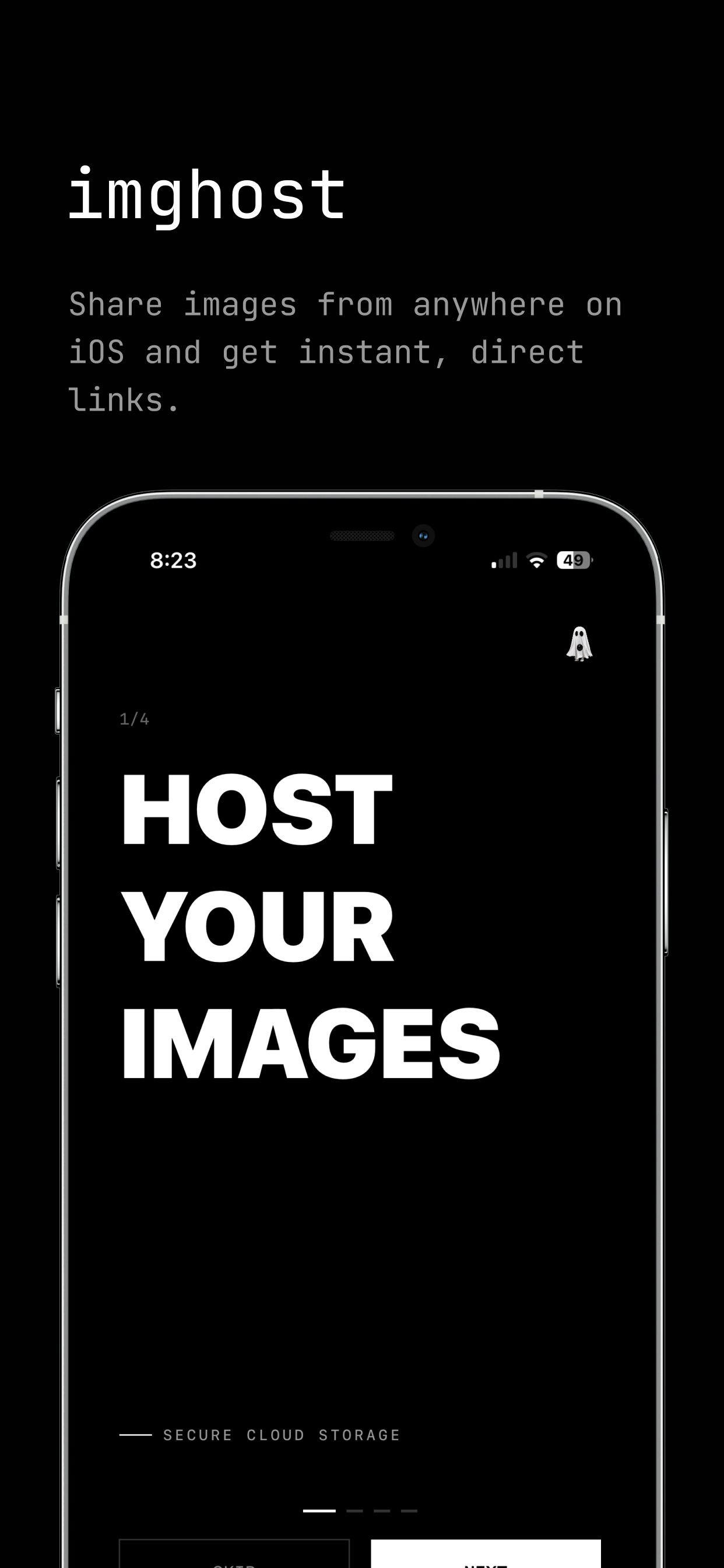
Sometimes an image needs to become a link, not an attachment. You might be writing a bug report, sending a screenshot in chat, embedding an image in Markdown, or posting to a forum that expects a direct image URL. imghost is built for that exact handoff.
Quick answer
Install imghost, share a photo or screenshot to the app, let it upload, then copy the output format you need. On iPhone and iPad, the fastest entry point is the iOS Share Sheet. On Mac, use the macOS app or share extension when available in your installed build.
Turn an image into a link on iPhone or iPad
- Choose the image. Open Photos, Files, Safari, Messages, Notes, or another app that can share media. Select the photo, screenshot, GIF, or supported file you want to host.
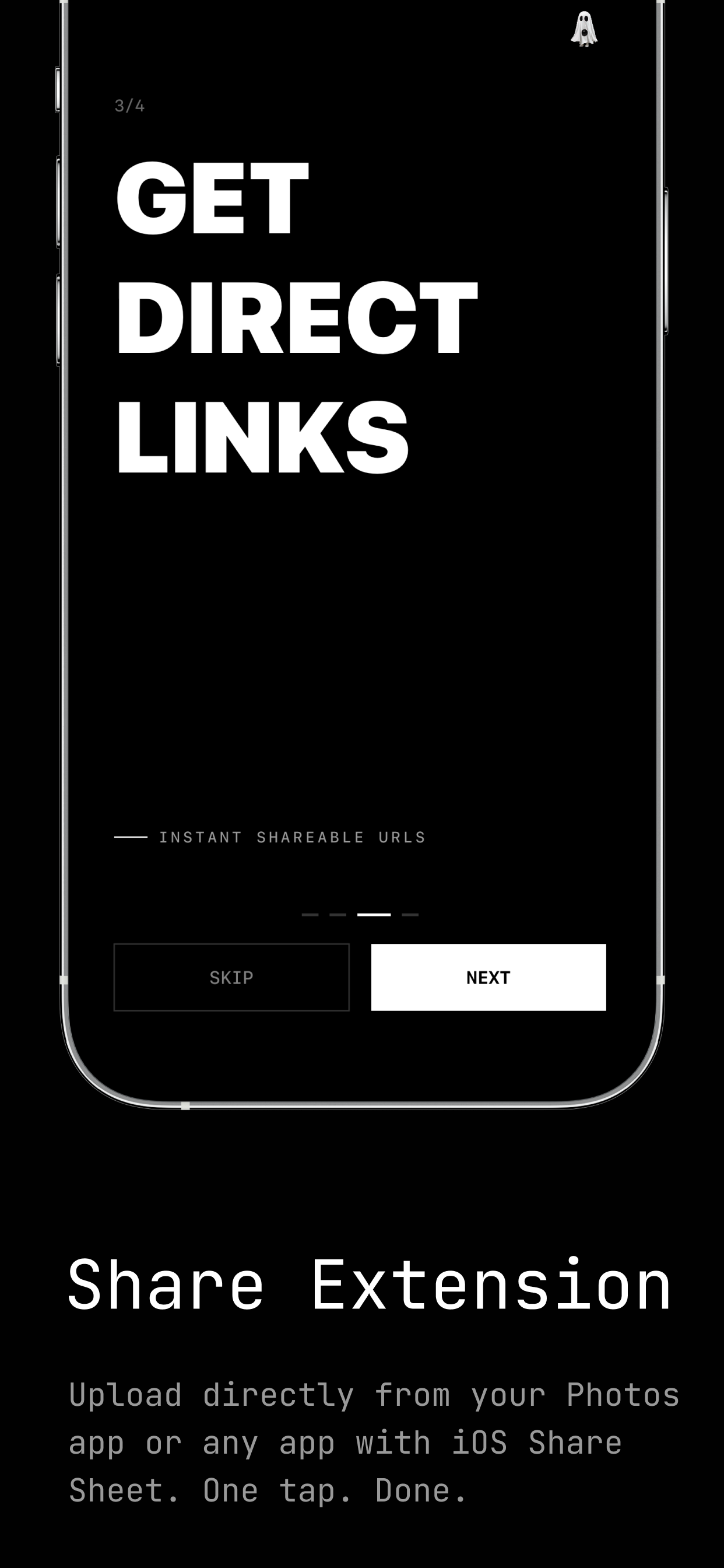
- Open the Share Sheet. Tap the iOS share button. If imghost is not visible, scroll through the app row, tap More, and enable it for faster access next time.
- Send it to imghost. imghost receives the item, prepares it according to your quality settings, and uploads it to the hosted backend for your account.
- Copy the result. After upload, use the copied link or open the item in your imghost library to copy the raw URL or the formatted version you prefer.
The hosted link is meant to be clean and direct: no social feed, no interstitial page, and no extra viewer UI. That makes it useful for GitHub issues, Discord messages, documentation, Markdown notes, forum posts, emails, and any workflow where an image needs to be referenced by URL.
Turn an image into a link on Mac
On Mac, the goal is the same but the entry points are desktop-native. If your installed imghost build includes the macOS app, you can drag files into the app, use the menu bar workflow, paste from the clipboard, or upload through the macOS share extension.
- Pick a local file. Start with a screenshot, exported image, PDF, video, archive, or other supported file.
- Upload from the Mac app. Drag and drop into imghost, use the file picker, or use the Share menu from an app that supports macOS sharing.
- Copy one or many links. The Mac upload flow can return results for selected files and copy links in the currently selected format.
- Manage the library later. Reopen imghost to browse history, copy a link again, delete an upload, or export your library if your plan supports it.
Because distribution can differ by release, check your current App Store or direct-distribution build for the Mac-specific features available to you. The iPhone/iPad Share Sheet flow remains the primary path for the public App Store app.
Choose the right link format
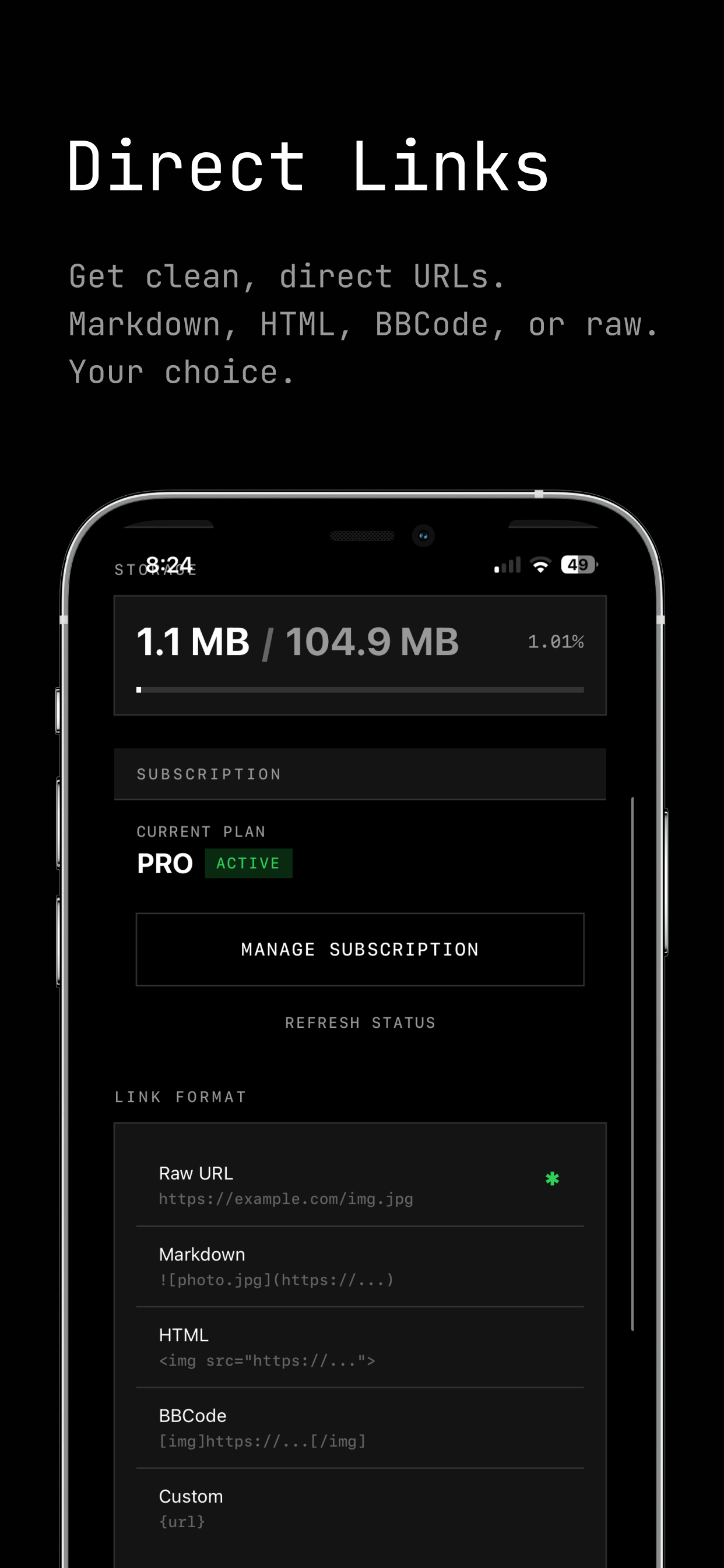
A hosted image URL is only half the workflow. The destination usually wants a specific shape. imghost can format the same upload in several ways:
| Format | Best for | Example |
|---|---|---|
| Raw URL | Chat apps, notes, browser tabs, APIs, and places that auto-preview links. | https://imghost.isolated.tech/f8x2k9.jpg |
| Markdown | GitHub issues, README files, docs, static sites, and Markdown notes. |  |
| HTML | Web pages, CMS fields, email templates, and custom snippets. | <img src="https://imghost.isolated.tech/f8x2k9.jpg" alt="photo.jpg"> |
| BBCode | Older forums and communities that still use BBCode image tags. | [img]https://imghost.isolated.tech/f8x2k9.jpg[/img] |
| Custom | Personal templates, recurring snippets, and specialized publishing workflows. | {url} with your own wrapper text. |
If you are not sure, start with the raw URL. If the destination is Markdown-aware, switch to Markdown so the image embeds instead of appearing as a plain text link.
Privacy and sharing expectations
Important: a shareable image link should be treated as public to anyone who has the URL. Do not upload private documents, sensitive screenshots, or personal data unless you are comfortable with link-based access.
imghost is a utility for direct links, not a private vault or social network. The hosted service stores uploaded files so links can resolve later. Your library helps you copy, delete, and export items, but a URL you send to someone else can be opened by that recipient and may be cached by browsers, chat apps, crawlers, or downstream services.
Deleting an upload from imghost is the right way to stop future access from the service side. In practice, cached previews or third-party copies may take time to disappear. For sensitive material, the safest workflow is not to upload it in the first place.
Troubleshooting
imghost does not appear in the iPhone Share Sheet
Open the Share Sheet, scroll to the end of the app row, tap More, and look for imghost. iOS lets you favorite share extensions so they appear closer to the front next time.
The link did not paste where I expected
Open imghost, find the upload in your library, and copy the link again. Also check which link format is selected; Markdown or HTML snippets are intentionally different from a raw URL.
The upload is too large
Plan limits and maximum upload sizes can change by tier and App Store region. If a file is rejected, try a smaller image export, a compressed quality preset, or a Pro plan if you need larger uploads and more storage.
I need to share several files
Use the app library to manage history, and use the Mac upload flow when available for desktop batch-style work. For long-term ownership, export support is available on supported plans.
The practical rule
Use imghost when the next step in your workflow needs a URL instead of an attachment. Pick the image, upload it, copy the correct format, and paste it where the conversation, issue, document, or website needs it.